Managing your eLearning Platform: Moodle
How to login
Go to your eLearning platform: Moodle.
WU account users:
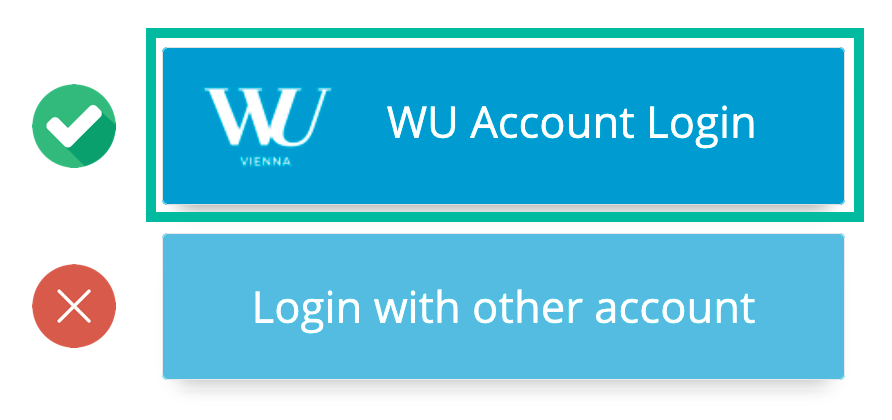
1. Click on WU Account Login
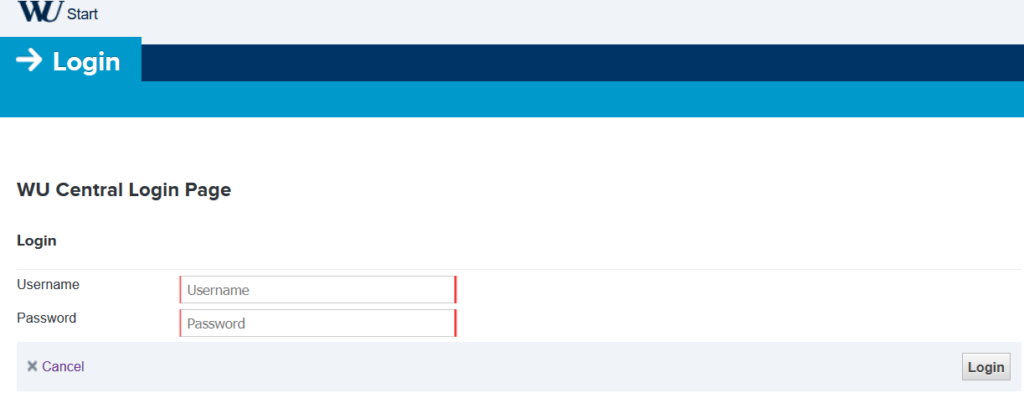
2. You will be redirected to another page. Please enter your WU account username (e.g. h11250486) and your password and select Login.
In case you have forgotten your WU account password, click here: Reset WU account password?
All other users:
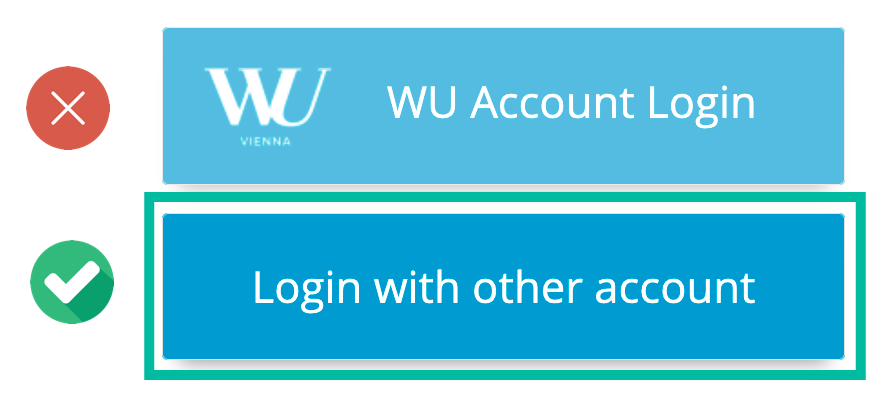
1. Click on Login with other account
2. Enter the login data provided by your program manager in the input fields and select Login.
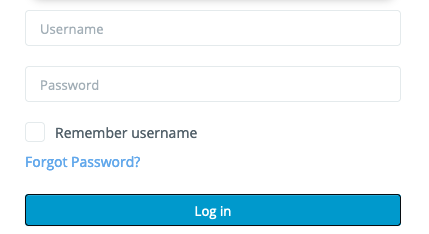
You can reset you password by clicking on the Forgot Password? link (only for non-WU Accounts).
Setting up 2FA/MFA
To set up 2FA/MFA for your WU account you will need a phone with an authentication app (we recommend Microsoft Authenticator) and have to sign in to Microsoft My Sign-Ins using your e-mail address containing an “s”.
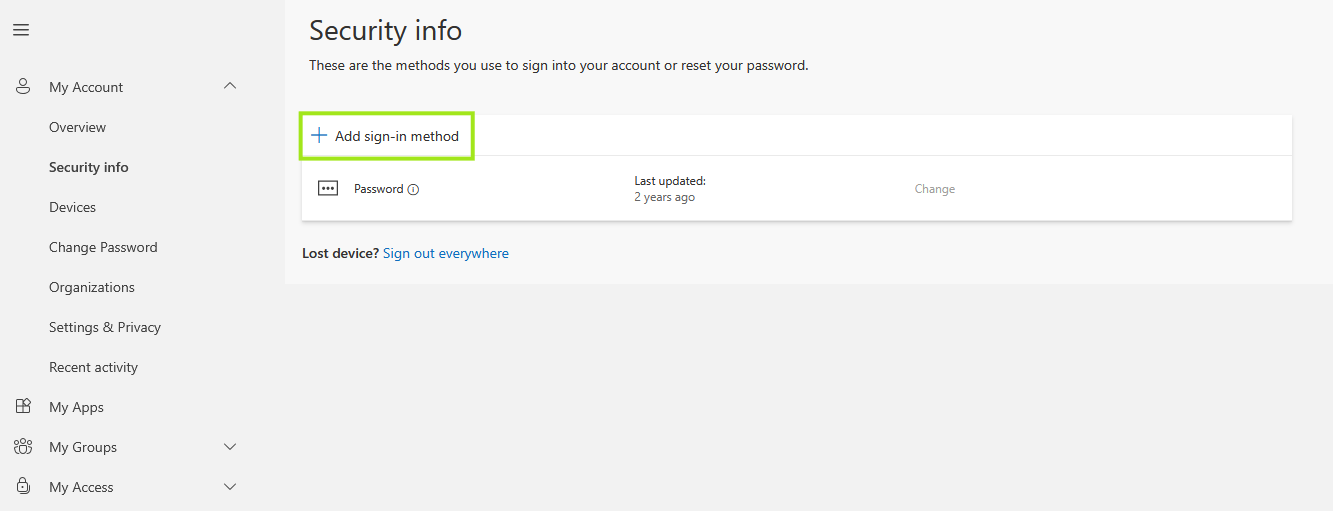
Next open the Security Information section and select “Add sign-in method”.
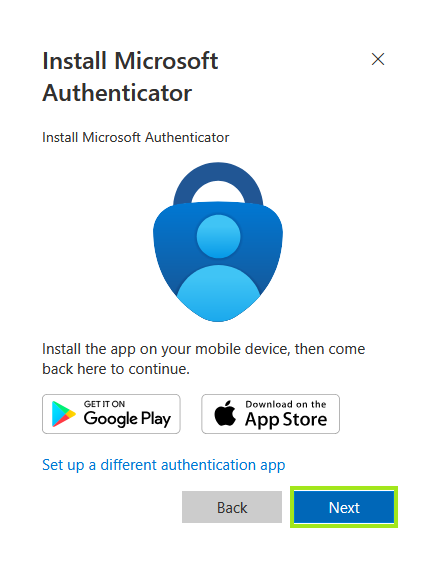
Then select “Microsoft Authenticator” as your new sign-in method and click on “Next”.
Follow the instructions on your notebook and then click “Next”.

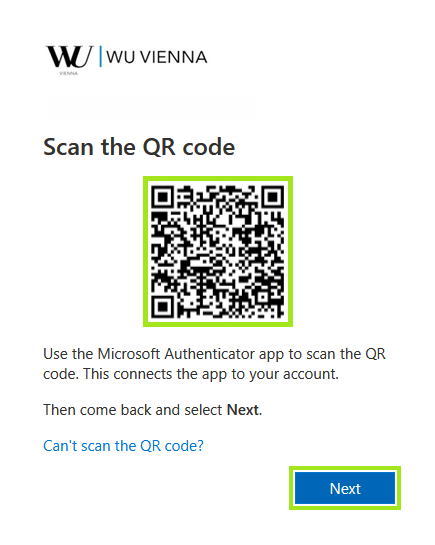
On your mobile device: in the Microsoft Authenticator app, select the “Plus” symbol in the top right corner and select Business or School Account and then “scan QR-Code”. Then scan the QR code that is displayed on the notebook screen, and select “Next”.
A two-digit number is now displayed on your notebook screen. At the same time, you receive a prompt on your mobile device in the Microsoft Authenticator app.
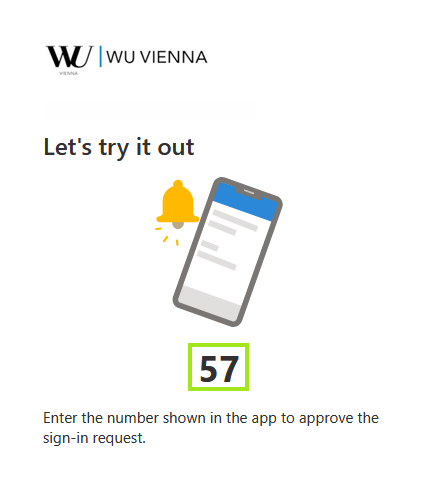
Enter the number on your mobile device and select “Yes” to confirm the verification.
Confirm your input using TouchID, face recognition, or the lock PIN on the mobile device.
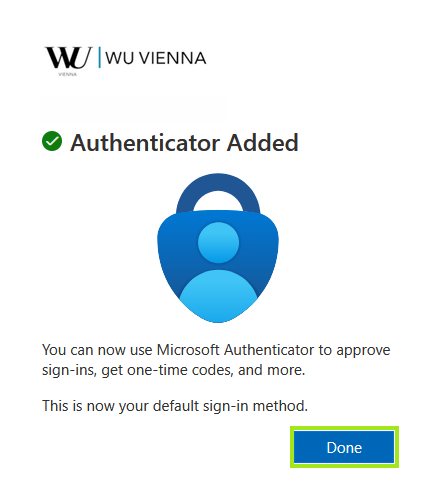
Select “Done” to complete the registration process. The Microsoft Authenticator app has been successfully registered.
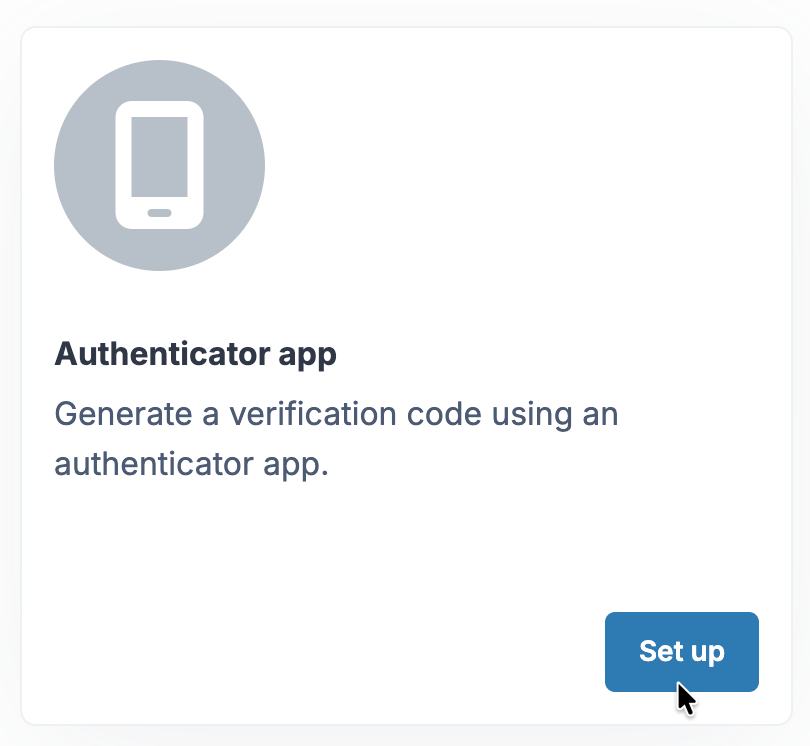
To set up 2FA/MFA for your external Moodle account you need to navigate to your account settings and click on “Multifactor Authentification” > “Set up”.
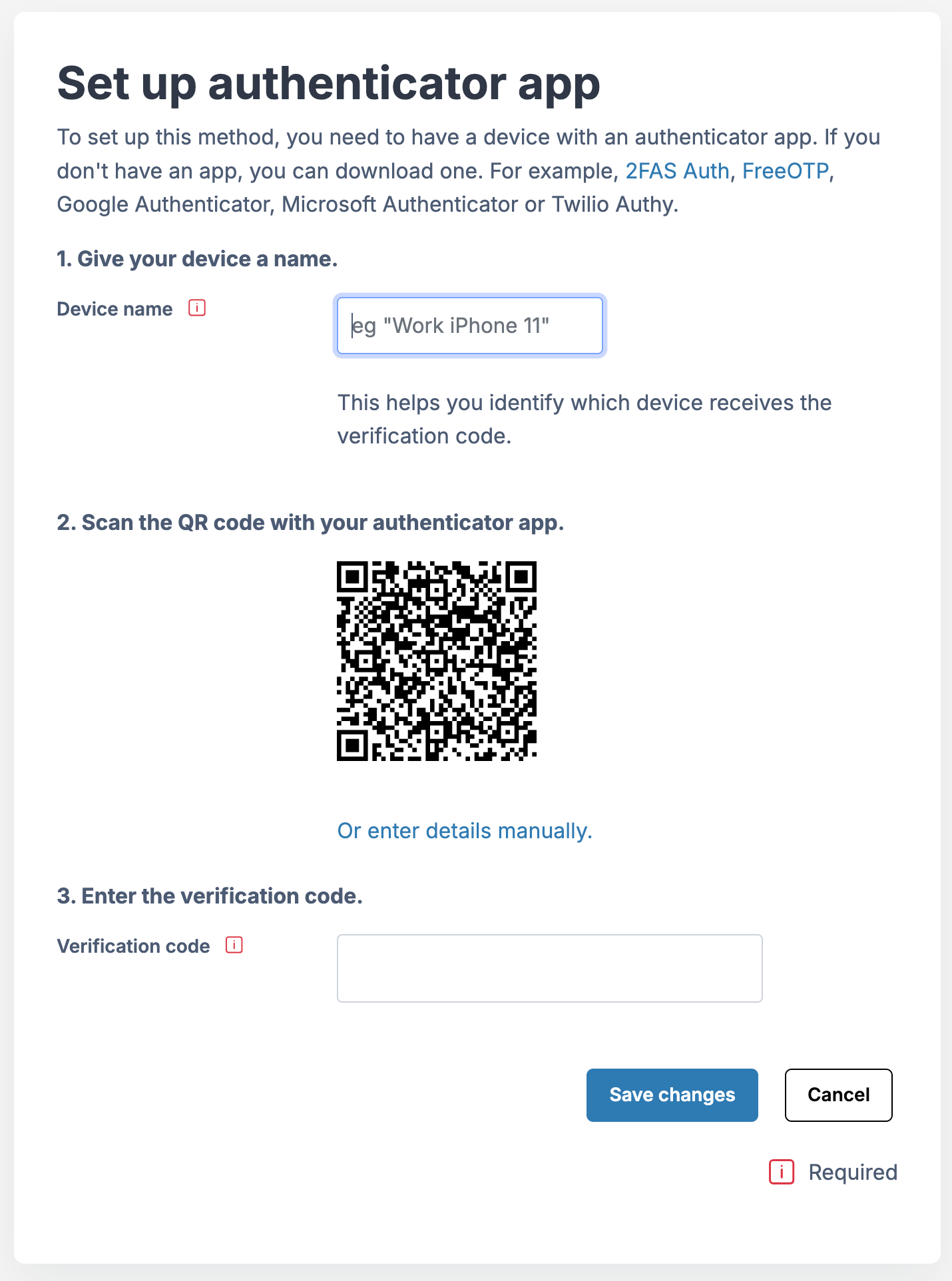
Next you will need a phone with an authentcation app. We recommend using Microsoft Authenticator.
Enter the name of your device in the “Device name”-field. Next open your authentication app on your phone, click on the plus icon in the top right corner, select “Other account” and scan the QR code displayed in Moodle.
After that you are going to receive a 6 digit code that you have to enter in the field “verification code”.
After clicking on “Save changes” your second factor will be sucessfully set up.
How to access your courses
After logging in, you will see the dashboard where you can access your courses.
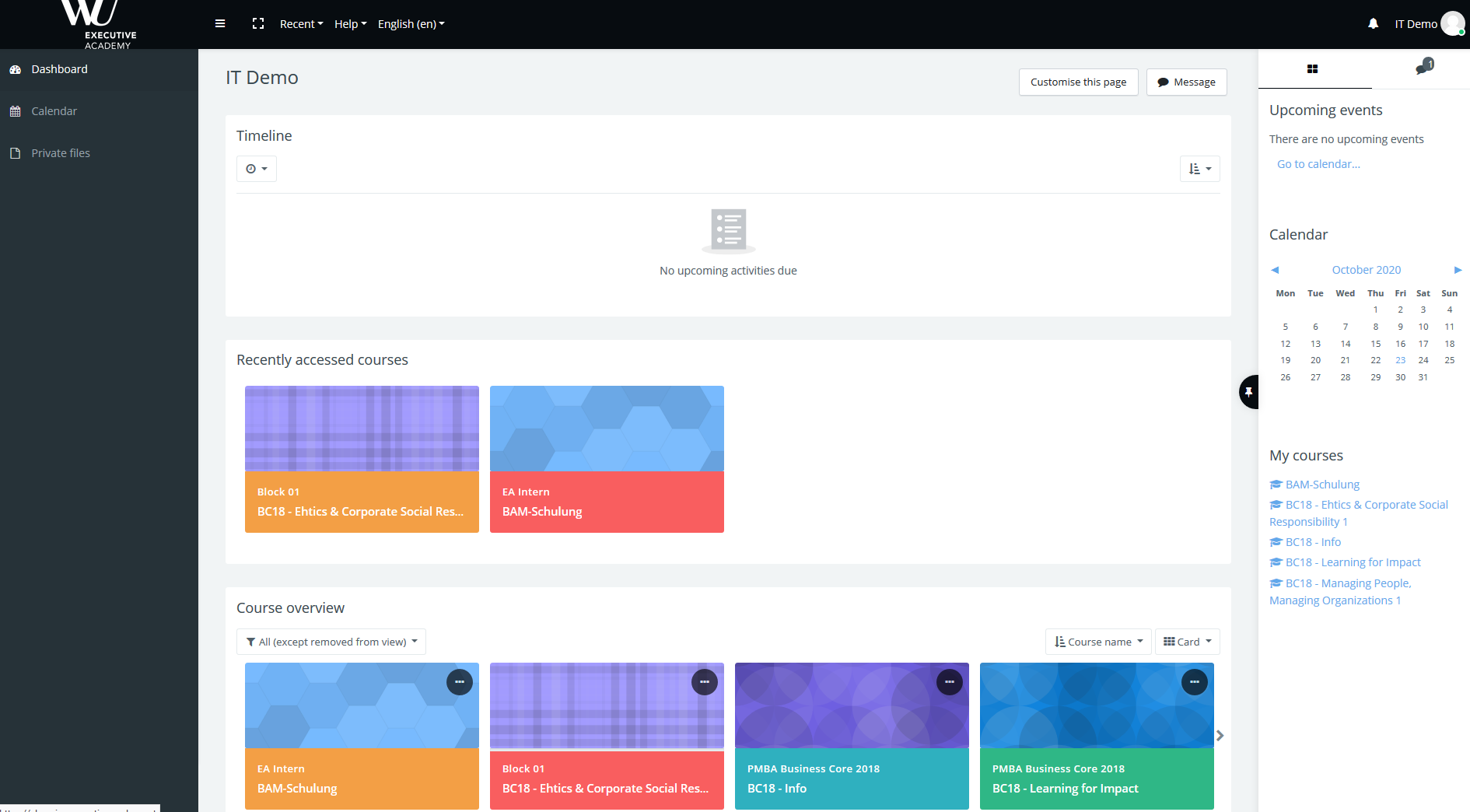
Please note: You can only use your Moodle account while being an enrolled student at the WU Executive Academy. Make sure to save all important data before your enrollment expires.
Enable Videos on Safari
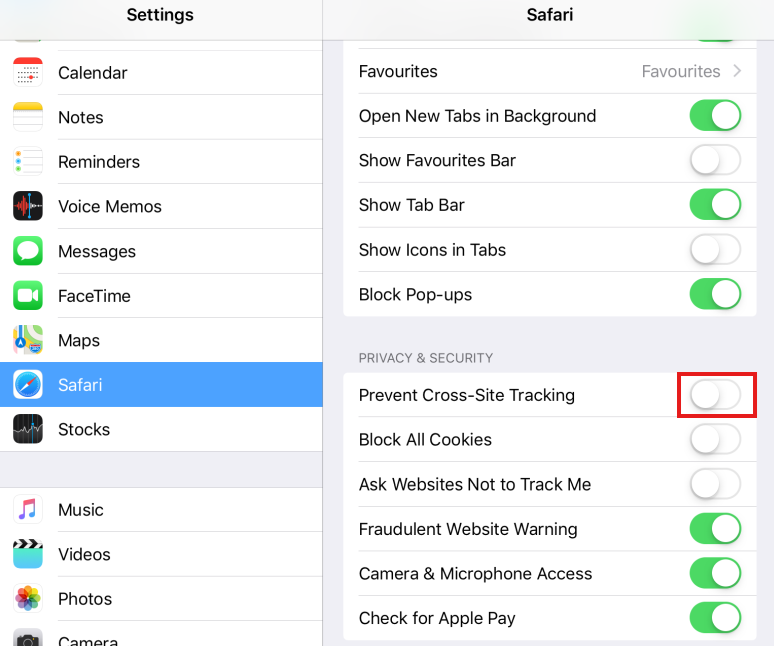
If videos don’t play/show on Moodle “Prevent cross-site tracking has to be disabled in the Safari settings.
On MAC OS you can do that by opening the browser settings, navigating to the tab “Privacy” and unchecking the box for “Prevent cross-site tracking”.
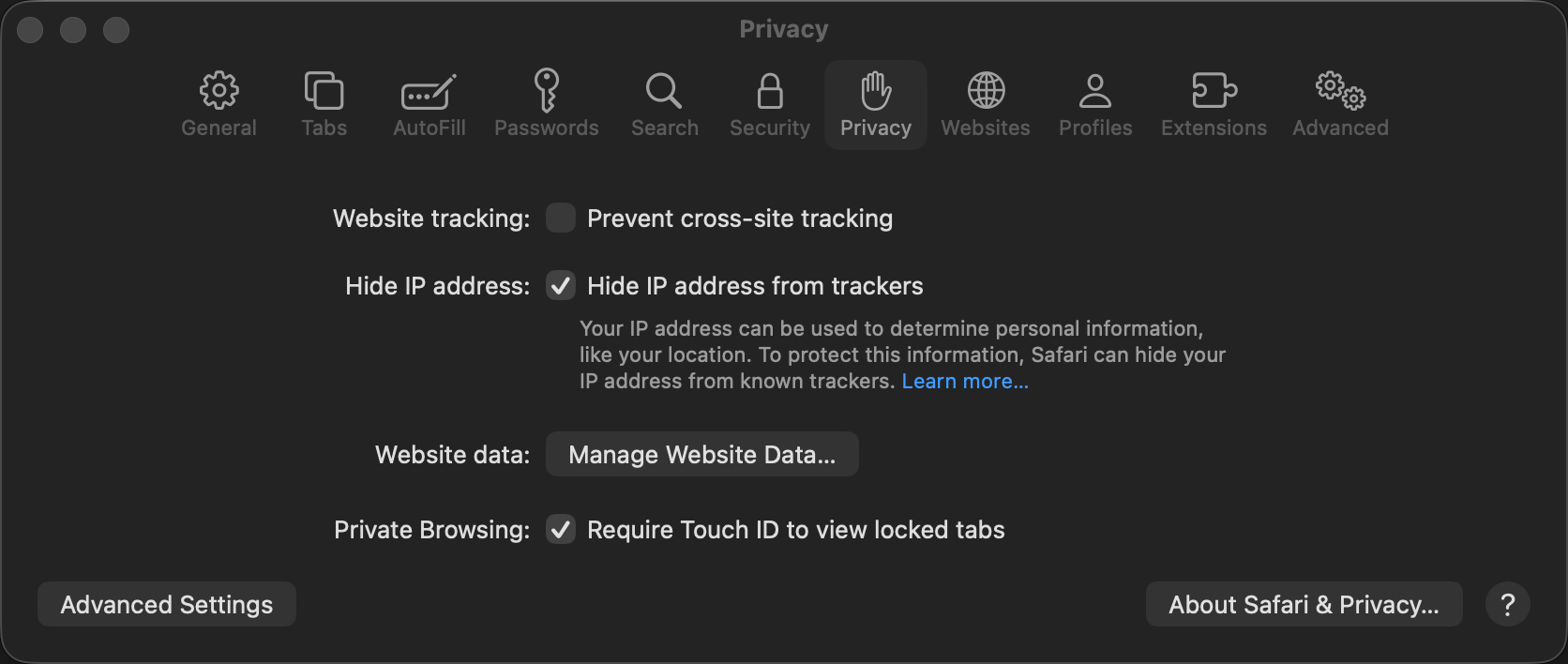
On Apple iOS you can do that by opening the settings app, navigating to the Safari app, scrolling to “Privacy & Security” and untoggling “Prevent cross-site tracking”.